What Is Base64 Encoding?
Base64 is an encoding scheme that converts binary data (like an image file) into a string of ASCII characters. That string can be embedded anywhere text is valid - HTML attributes, CSS values, JavaScript strings.
For icons, Base64 encoding transforms your SVG or PNG file into a Data URI that looks something like:
data:image/svg+xml;base64,PHN2ZyB4bWxucy...This string contains the complete icon data, so the browser renders it without making any network request.
When Base64 Makes Sense
Base64 is a powerful optimization, but it's not always the right choice. Here's when it excels:
Use Base64 For:
- Small icons (under 5KB) used frequently across your site - favicons, nav icons, UI elements
- CSS background icons - background-image: url('data:image/svg+xml;base64,...')
- Email templates - email clients often block external images, but embedded Base64 data URIs load reliably
- Single-page apps where you want zero external icon requests
- Offline-capable PWAs where all assets must be bundled
Avoid Base64 For:
- Large images - Base64 increases file size by ~33%, making large images significantly heavier
- Icons that change frequently - a cached external SVG file can be updated without rebuilding your CSS
- Icons used only once or twice - the overhead isn't justified for rarely used icons
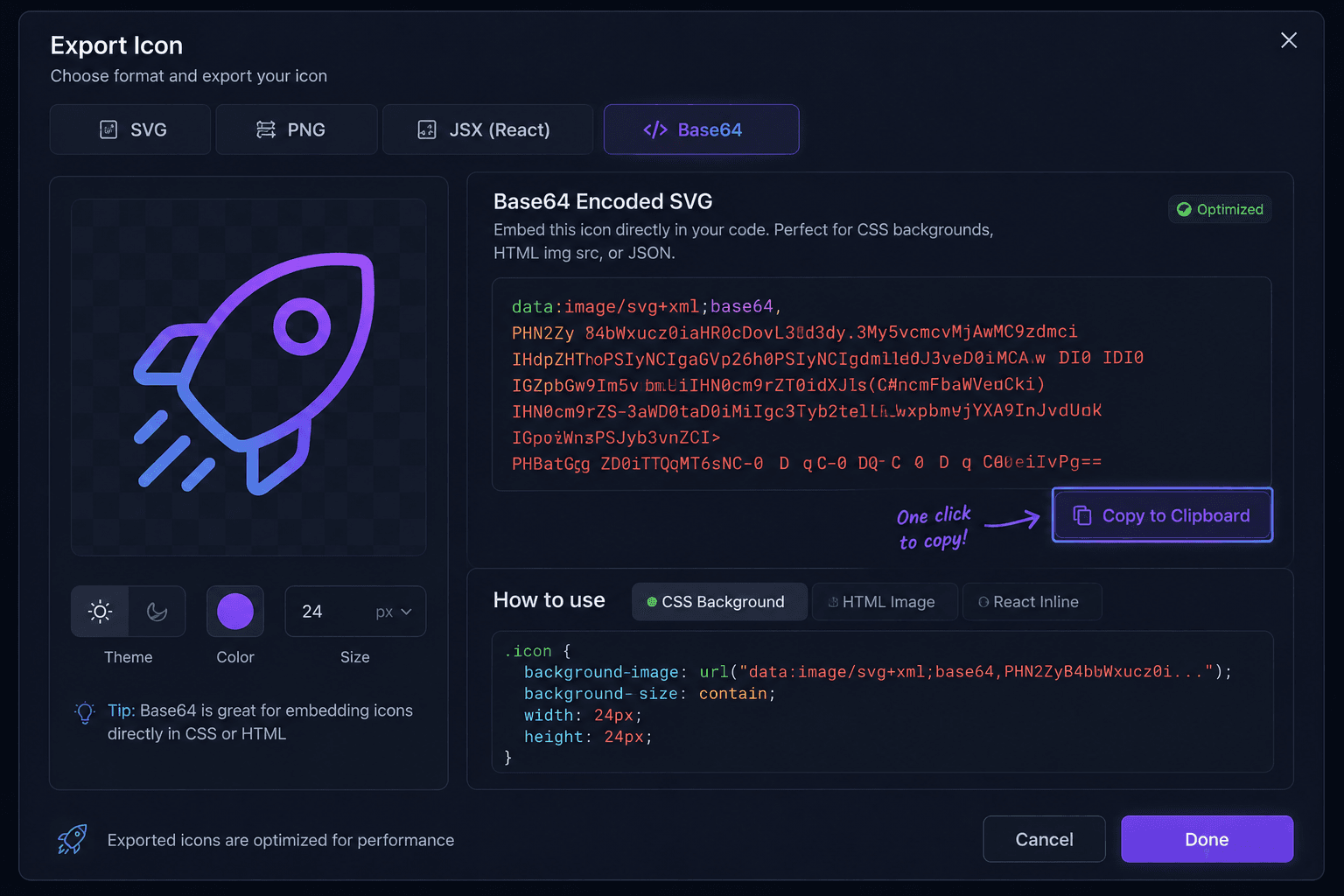
How to Export Base64 from IconVaultKit
Exporting Base64 from IconVaultKit takes seconds:
- Find your icon using search or collection browse.
- Customize color and size to your specifications.
- Click the 'Export' or 'Base64' button in the icon panel.
- Click 'Copy' to copy the complete Data URI string to your clipboard.
- Paste it directly into your HTML, CSS, or JavaScript file.
No conversion tools, no command-line encoders, no external services needed.
Using Base64 Icons in CSS
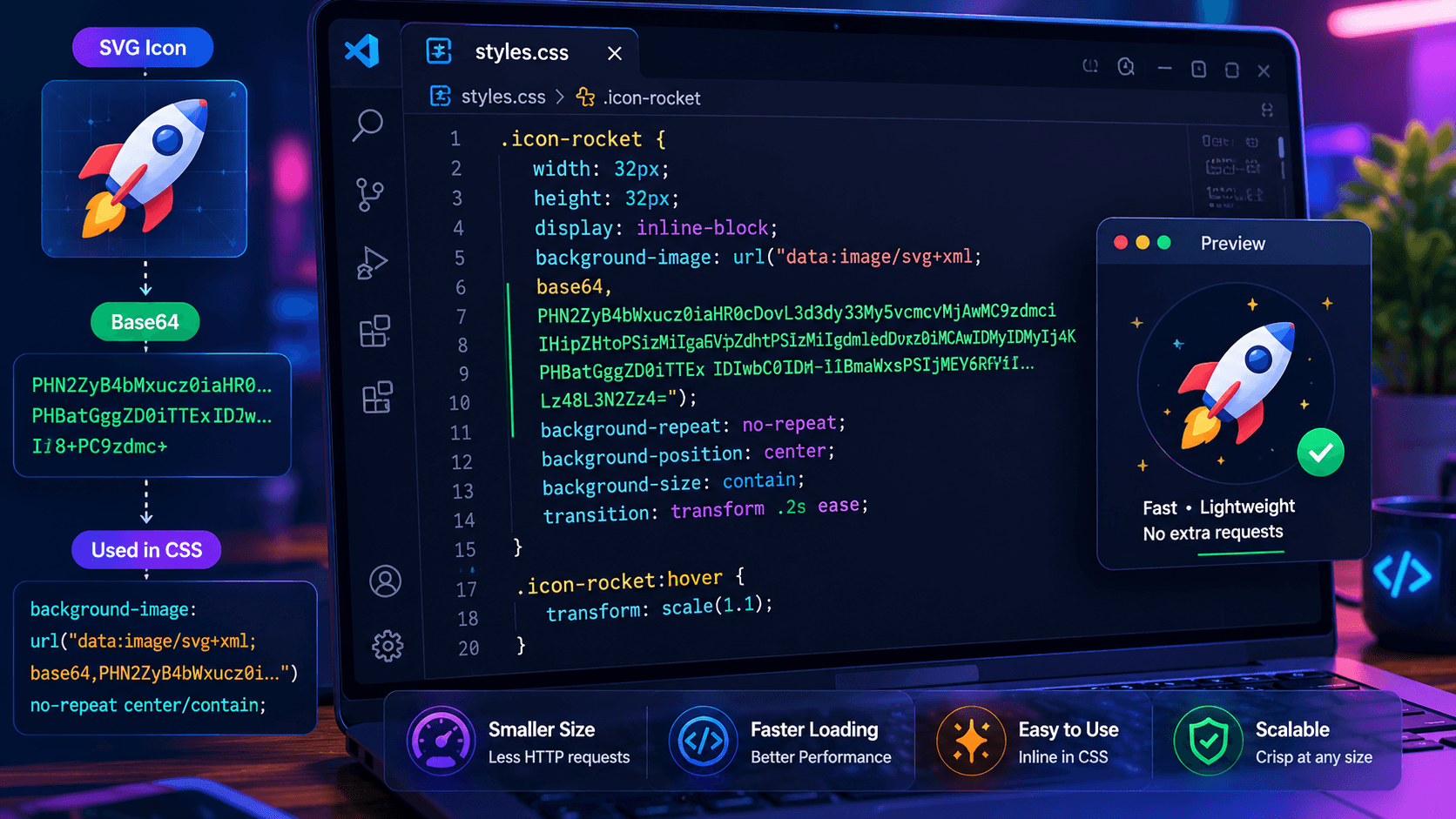
The most common Base64 icon use case is CSS background images:
.nav-icon-home {
  background-image: url('data:image/svg+xml;base64,...');
  background-size: 24px 24px;
  background-repeat: no-repeat;
}
This approach is especially useful for:
- Custom checkbox and radio button styling
- List item bullet replacements
- Button icons that need to change on hover via CSS
- Pseudo-element content (::before, ::after) icons
Using Base64 Icons in HTML
Base64 icons can also be embedded directly in HTML img tags:
<img src="data:image/svg+xml;base64,..." alt="Home icon" width="24" height="24" />This is perfect for email templates where external image blocking is a concern.
Performance Implications
When you use Base64 icons correctly, the performance benefits are real:
- Zero HTTP requests for embedded icons - eliminates round-trip latency
- No render-blocking - icon data arrives with the HTML/CSS it's embedded in
- Consistent display - no icon 'flash' while waiting for external files to load
- Works on slow connections - icons are bundled with your core styles
Trade-off: Base64 increases file size ~33%. For a 2KB SVG, that's 2.67KB. This is cached with your CSS file, so subsequent page loads are unaffected - but first-load time of your CSS increases slightly.
Best Practice: Hybrid Approach
The optimal strategy for most projects:
- Use inline SVG or external SVG files for large, prominent icons (hero icons, feature section icons).
- Use Base64 in CSS for small, repeated UI icons (nav icons, button icons, form icons).
- Use SVG sprites for icon-heavy interfaces with many different icons.
Conclusion
Base64 icon export is a powerful performance technique, and IconVaultKit makes it effortless. By embedding small, frequently-used icons as Data URIs, you reduce HTTP requests, eliminate icon flash, and create a faster, more reliable experience for your users.
Master Base64 export today with IconVaultKit - and notice the difference in your Lighthouse performance scores.