Step 1: Define Your Icon Brand Standards
Before touching IconVaultKit, clarify what 'brand-consistent icons' means for your project:
- Primary color: What hex code should most icons use?
- Icon weight: Outline/line style, filled, or duotone?
- Size standard: What size will icons typically appear at (16px, 24px, 32px)?
- Style family: Which icon library will you draw from (for visual consistency)?
Writing these down first - even as a quick internal note - makes your IconVaultKit session much faster and more decisive.
Step 2: Save Custom Color Presets
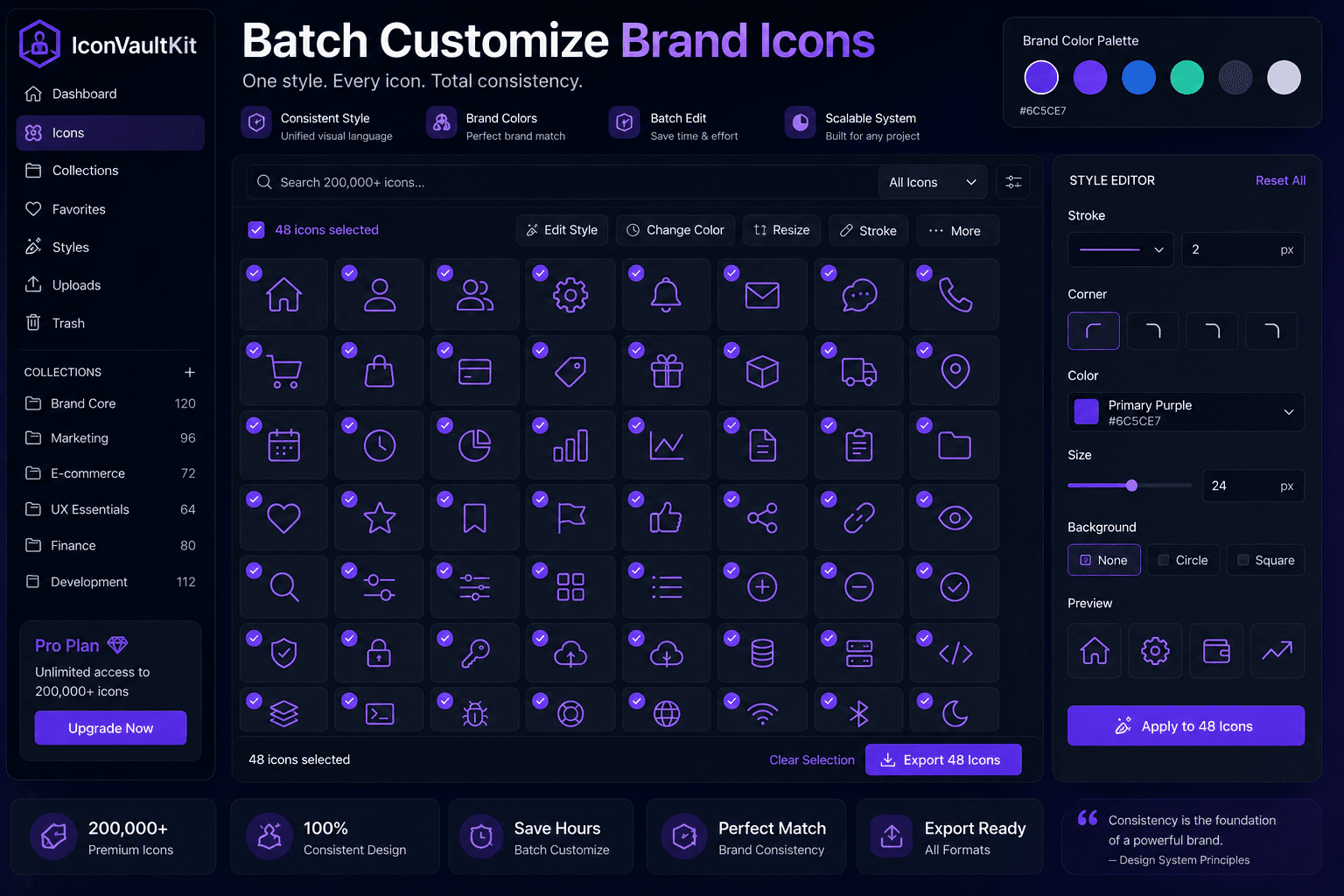
IconVaultKit lets you save custom color presets. Before you start downloading icons:
- Open any icon in IconVaultKit.
- Enter your brand's primary hex color in the color picker.
- Save it as a preset.
- Repeat for any secondary or accent colors.
Now every icon you customize this session (and future sessions) can apply your brand color with a single click - no re-entering hex codes.
Pro Tip: Save your full brand palette as presets: primary, secondary, accent, neutral. You'll be able to apply the right color to any icon instantly, maintaining perfect consistency.
Step 3: Filter by a Single Icon Collection
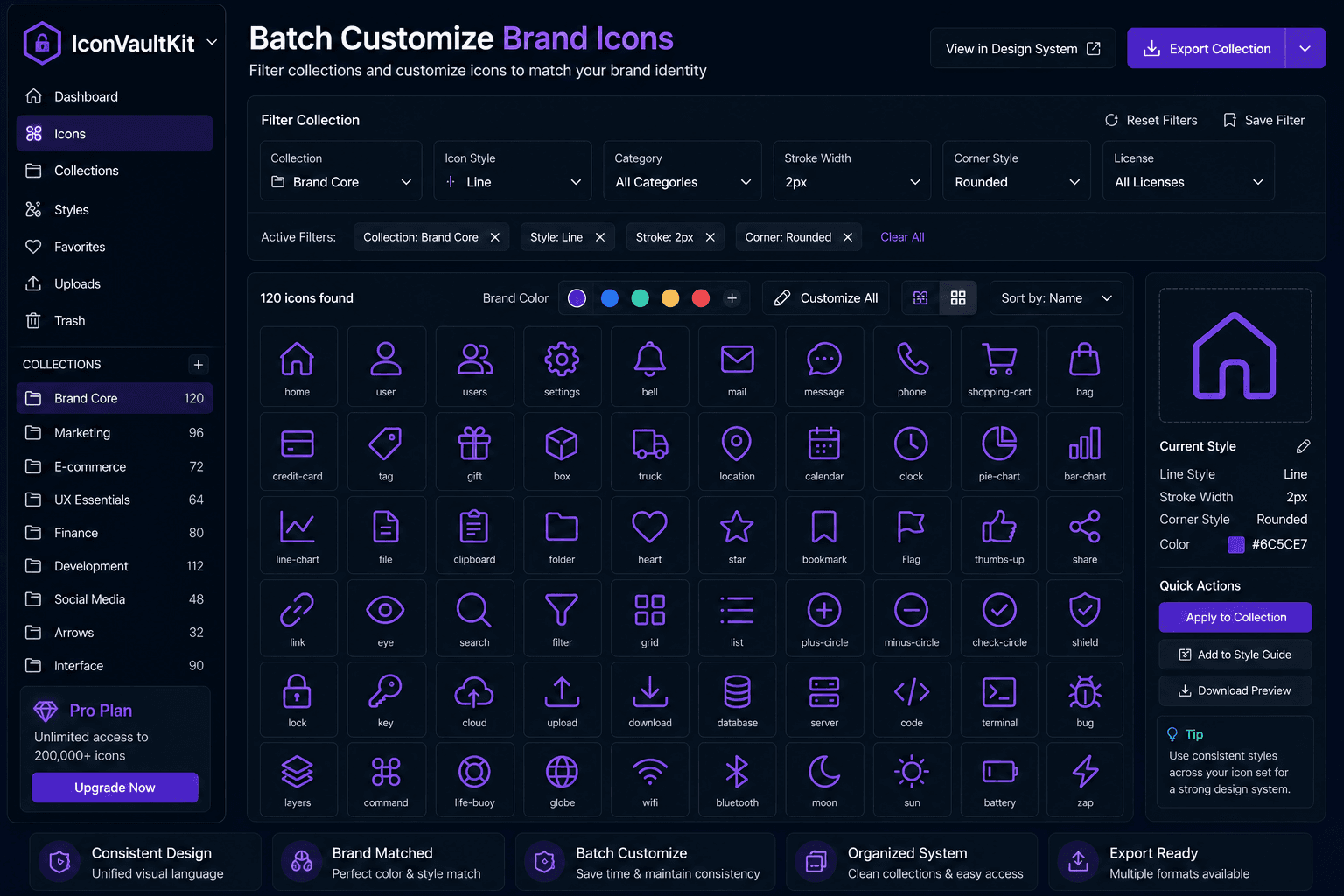
The most important step for visual consistency: use icons from a single collection throughout your project.
In IconVaultKit, use the 'Browse by Collection' feature to limit your search to one icon library. This ensures every icon you choose shares the same:
- Stroke weight and style
- Corner radius and geometry
- Visual density and proportions
- Overall aesthetic personality
Mixing icons from different libraries - even if they look similar - creates subtle inconsistencies that trained eyes notice immediately.
Step 4: Work Through Categories Systematically
Organize your icon selection by category rather than randomly:
- Navigation icons first (home, search, menu, profile, settings)
- Action icons next (add, edit, delete, save, download, share)
- Status icons (success, error, warning, info, loading)
- Feature-specific icons (relevant to your product's domain)
This systematic approach prevents duplicating icons, ensures you haven't missed any category, and produces a complete, organized icon set.
Step 5: Export Consistently
For each icon, use the same export settings:
- Same color (from your saved preset)
- Same base size (e.g., 24px for all standard icons)
- Same format (e.g., SVG for everything, or JSX if building in React)
Consistent export settings mean your icons arrive with uniform specifications - no post-processing needed.
Organizing Your Icon Assets
Once downloaded, organize icons consistently:
- Use a clear naming convention: [category]-[name]-[style].svg (e.g., nav-home-outline.svg)
- Group by category in folders: /icons/nav/, /icons/actions/, /icons/status/
- Keep a master reference sheet: a Figma frame or HTML page showing all icons at a glance
Creating a Brand Icon Guide
For team projects, document your icon standards:
- Approved icon list with visual reference
- Color specifications with hex codes
- Size standards for different contexts (16px for dense UI, 24px for standard, 32px for feature sections)
- IconVaultKit collection used (so anyone can find additional matching icons)
This guide ensures new team members and future contributors maintain brand consistency without guessing.
Conclusion
Brand-consistent icons don't happen by accident - they happen through intention and process. With IconVaultKit's color presets, collection filtering, and fast export workflow, you can build a fully consistent icon system for any brand in a single focused session.
Set your standards, save your presets, filter to your collection, and start building. Your brand (and your future self) will thank you.