
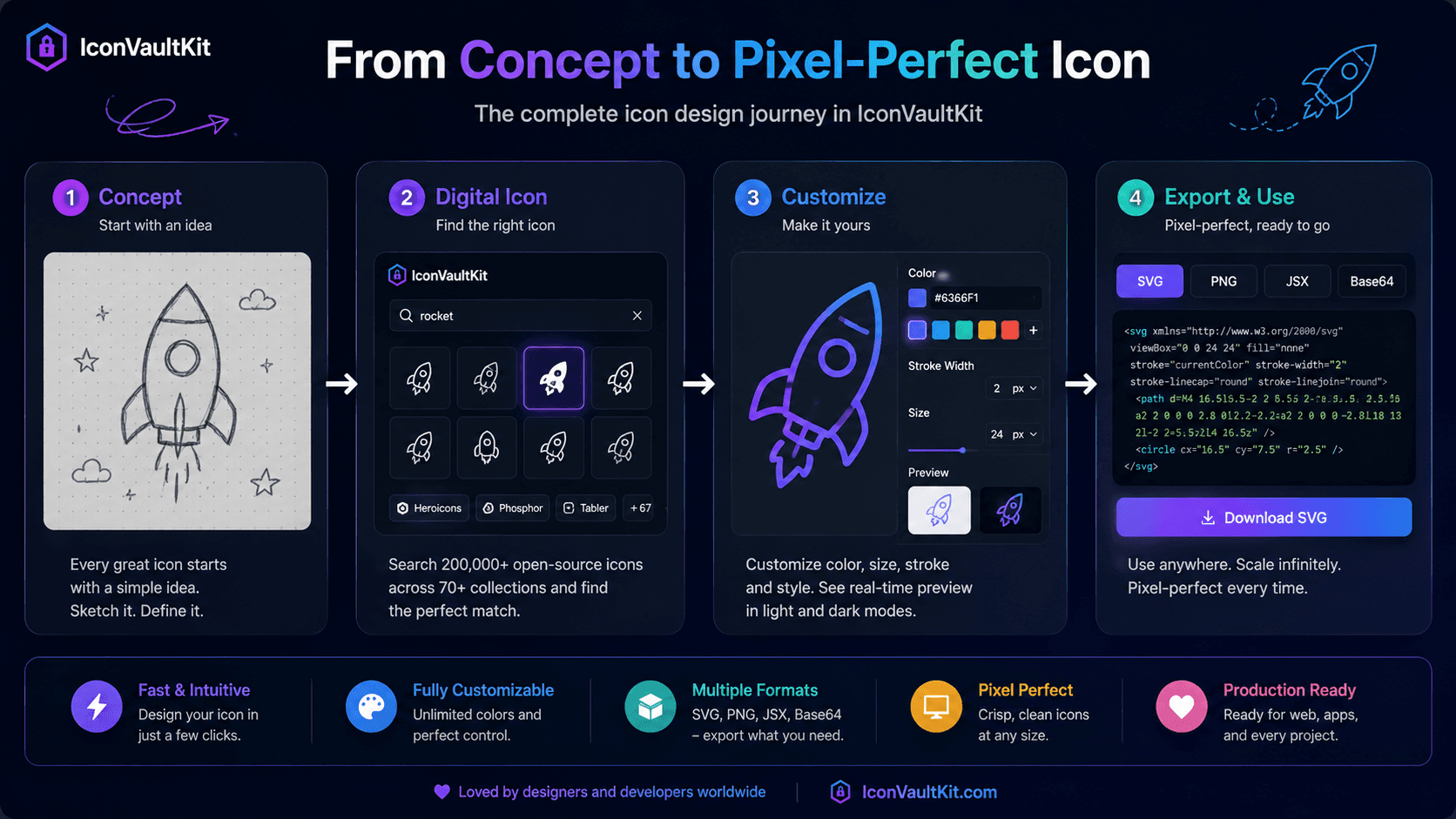
The Icon Design Journey
Every icon starts as a concept - a rough idea of what visual metaphor will communicate the right meaning to users. The journey from that concept to a pixel-perfect, production-ready icon has historically involved multiple tools, multiple decisions, and multiple rounds of iteration.
IconVaultKit compresses that journey into a single, streamlined tool.
Stage 1: Concept
It starts with a question: what does this icon need to communicate? Write it as a concrete noun or verb. 'Upload' not 'sending data.' 'Calendar' not 'scheduling system.' The more concrete your concept, the better your icon search will be.
Stage 2: Search
Type your concept into IconVaultKit. Browse the results across multiple icon families. Look for the one that best communicates your concept at a glance - the visual metaphor that requires zero explanation.
Designer's instinct test: Show the icon for 1 second and ask 'What does this do?' If the answer matches your intent, you've found your icon.
Stage 3: Style Selection
If multiple icons match your concept, choose based on your product's visual language:
- Outline style: Clean, modern, minimal interfaces
- Filled style: Bold, accessible, mobile-first interfaces
- Duotone: Premium, expressive, brand-forward interfaces
Stage 4: Customization
Apply your brand color. Adjust stroke weight if needed. Set the exact pixel size for your intended use case. IconVaultKit's real-time preview shows you exactly what the final icon will look like - no surprises.
Stage 5: Pixel-Perfect Export
Export at exactly the right size. SVG icons render perfectly at any scale - but set the viewBox correctly so your icon aligns to pixel boundaries at standard sizes (16, 24, 32, 48px) for crispness.
Stage 6: Production Integration
Drop your SVG, PNG, JSX, or Base64 export directly into your project. No post-processing. No Photoshop touchups. No conversion scripts. Production-ready from first export.
Conclusion
The best design process is the one that gets you from concept to polished output with the least friction. With IconVaultKit, the entire icon design journey - from search to pixel-perfect export - happens in one tool, in one browser, in minutes.