
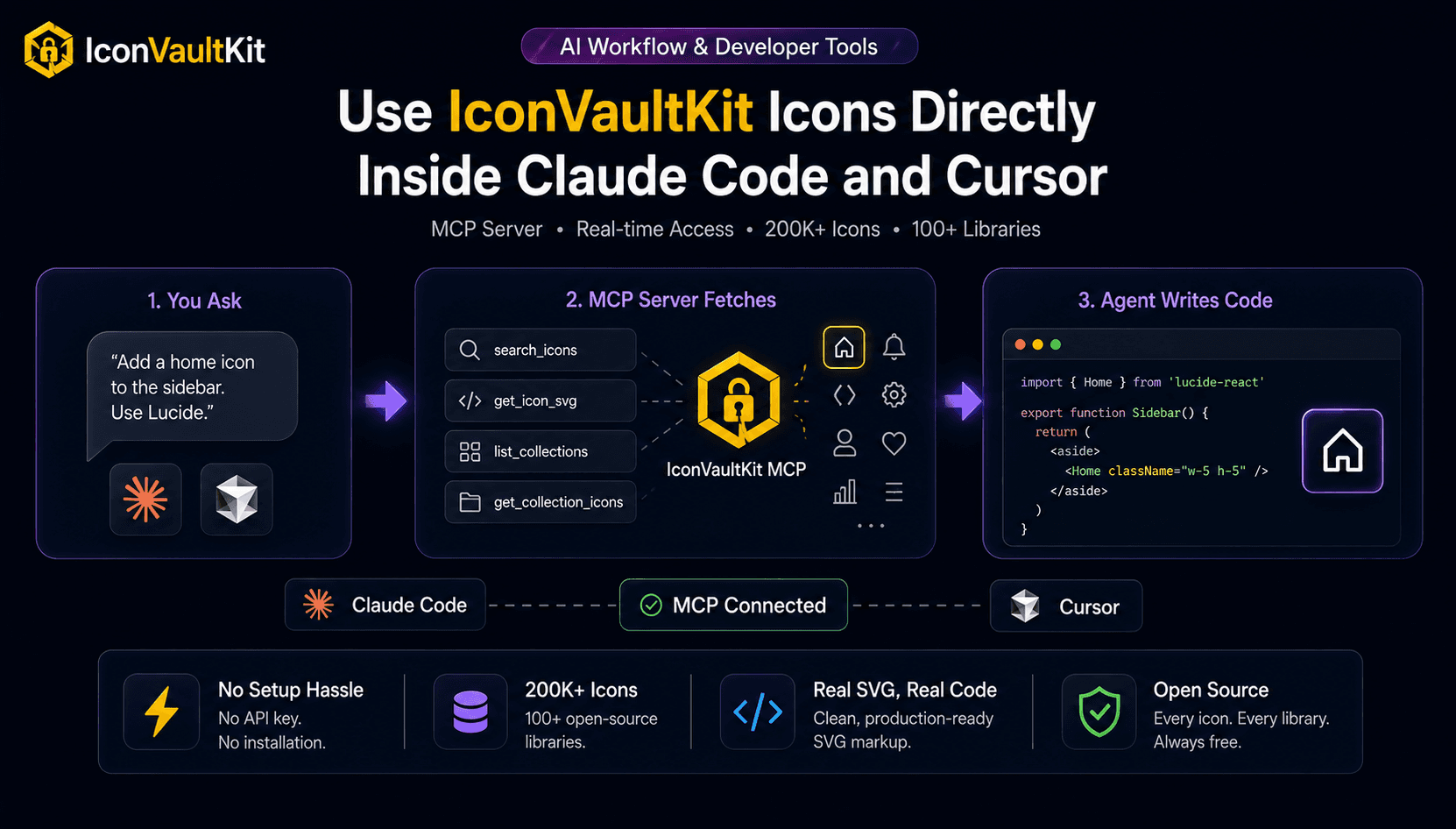
The Problem with Icons and AI Agents
AI coding agents are excellent at writing components, wiring up logic, and refactoring code. But when it comes to icons, they consistently fall short. Ask your agent to "add a home icon from Lucide" and one of three things happens: it writes the right import but guesses the wrong icon name, it asks you to look it up and paste it back, or it fabricates a component that doesn't exist.
The root issue is that agents don't have live access to icon libraries. They work from training data, which goes stale and never includes the full catalogue of 200,000+ icons across 100+ libraries.
The IconVaultKit MCP server solves this by giving your agent real-time, direct access to the same icon data you'd find on the website.
What is MCP?
The Model Context Protocol is an open standard that lets AI agents call external tools during a conversation. Once you register the IconVaultKit MCP server in your agent config, it gains four new tools it can call at any point while coding:
- search_icons: search by keyword across all libraries
- get_icon_svg: fetch the actual SVG markup for any icon
- list_collections: see all 80+ available libraries and their prefixes
- get_collection_icons: browse every icon inside a specific library
Your agent picks the right tool automatically based on what you ask for.
Setup in 60 Seconds
Claude Code
Run this in your terminal:
claude mcp add --transport http iconvaultkit https://iconvaultkit.com/api/mcpOr add manually to ~/.claude/claude.json:
{
  "mcpServers": {
    "iconvaultkit": {
      "type": "http",
      "url": "https://iconvaultkit.com/api/mcp"
    }
  }
}
Restart Claude Code and you're done.
Cursor
Go to Cursor Settings, open the MCP tab, and add a new server, or edit ~/.cursor/mcp.json:
{
  "mcpServers": {
    "iconvaultkit": {
      "url": "https://iconvaultkit.com/api/mcp"
    }
  }
}
Windsurf
Edit ~/.codeium/windsurf/mcp_config.json:
{
  "mcpServers": {
    "iconvaultkit": {
      "serverType": "http",
      "url": "https://iconvaultkit.com/api/mcp"
    }
  }
}
No API key. No account. No installation. The server runs on iconvaultkit.com so there's nothing to run locally.
What You Can Ask Your Agent
Once the server is connected, you talk to your agent the same way you always do. The difference is it now has tools to back up its answers:
- "Add a home icon to the sidebar. Use something from Lucide."
- "What arrow icons does Tabler have? Use one for the back button in the nav."
- "Replace the FontAwesome icons in this file with Heroicons equivalents."
- "Find me a settings icon that works in a dark theme."
- "Which icon library has the best selection of finance and banking icons?"
In each case, the agent will call the appropriate tool, get real results, and use the actual icon name in the code it writes. No hallucination, no placeholder, no "go look this up yourself."
� Try asking: "List the available icon libraries from IconVaultKit" right after setup. If the server is connected correctly, your agent will call list_collections and return the full list immediately.
A Real Workflow Example
Here's what a typical interaction looks like once the server is set up.
You ask: "Add a notification bell icon to the header. I'm using Heroicons."
Your agent:
- Calls search_icons with query "bell" and collection "heroicons"
- Gets back a list of real matches: heroicons:bell, heroicons:bell-alert, heroicons:bell-slash, heroicons:bell-snooze
- Picks the right one based on context
- Calls get_icon_svg to fetch the actual markup
- Writes the component using the correct icon name
The whole thing happens in seconds, invisibly, as part of the same response. You get working code with the right icon on the first try.
Why This Matters for Vibe-Coders
If you primarily work through AI agents rather than writing code by hand, UI tooling that only works through a browser interface is effectively invisible to you. You can't direct your agent to "go to the website and pick an icon" in any practical way.
MCP flips this. The tool becomes part of your agent's capabilities, which means it becomes part of your workflow without any extra steps. You describe what you want, the agent handles the lookup, and the code comes out right.
No Lock-in
The MCP server connects directly to the Iconify API under the hood, which means you get access to the same 200,000+ icons from 100+ open-source libraries that power the website. Every icon returned is from a real, maintained open-source collection with a permissive license.
The SVGs your agent fetches are production-ready: clean, correctly sized, and ready to paste or import directly into any project.
Get Started
The full setup guide with config examples for all three agents is at iconvaultkit.com/mcp. If you run into anything unexpected, reach out at info@iconvaultkit.com.
The browser tool is still there for when you want to browse visually. The MCP server is for when you want your agent to handle it.