
One Search. Limitless Results.
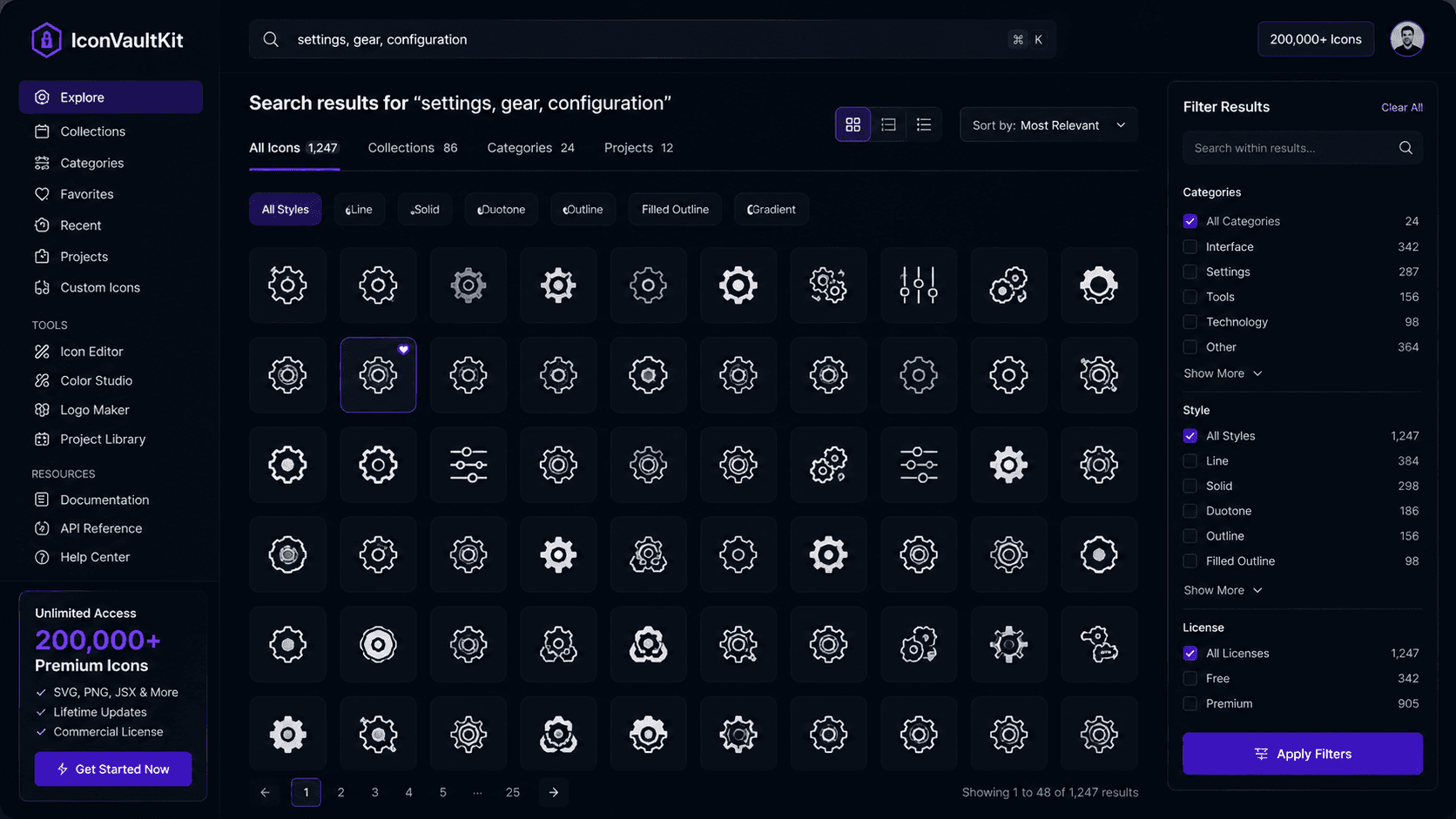
Let's walk through exactly what happens when you type 'gear' into IconVaultKit's search bar - and why it's so fast.
The Query
You type: gear. As you type, results begin populating. By the time you've typed all four letters, the grid is already full.
What You See
The results show every 'gear' and 'settings' icon across all 70+ icon collections in IconVaultKit's library:
- Classic gear/cog icons from Material Design - 8+ variants
- Minimal line-style gears from Heroicons and Feather
- Bold filled gears from Bootstrap Icons
- Two-tone gear variants from Phosphor
- Rounded, friendly gear versions from Tabler
- Specialized variants - gear with badge, gear with check, gear with arrow
Filtering Your Results
Once you see the full results, refine by:
- Collection - show only gears from your chosen icon family
- Style - outline only, or filled only
- Size - adjust preview size to see how icons read at your target dimensions
Finding the Perfect One
The right gear icon for your project depends on context:
- Settings page header: larger, filled gear for visual weight
- Nav menu item: smaller, outline gear for subtlety
- Mobile app settings tab: bold, filled for touch target clarity
- Developer tool UI: monochrome outline for technical feel
Search Pro Tip: Try synonyms if your first search doesn't surface exactly what you need. 'Gear' also appears under 'settings,' 'cog,' 'options,' and 'preferences.' IconVaultKit understands these relationships.
Conclusion
The magic of IconVaultKit's search isn't just the speed - it's the comprehensiveness. One keyword surfaces options from dozens of style families simultaneously, giving you genuine choice. Search smarter. Build faster.