The Fundamental Difference
SVG: Vector Format
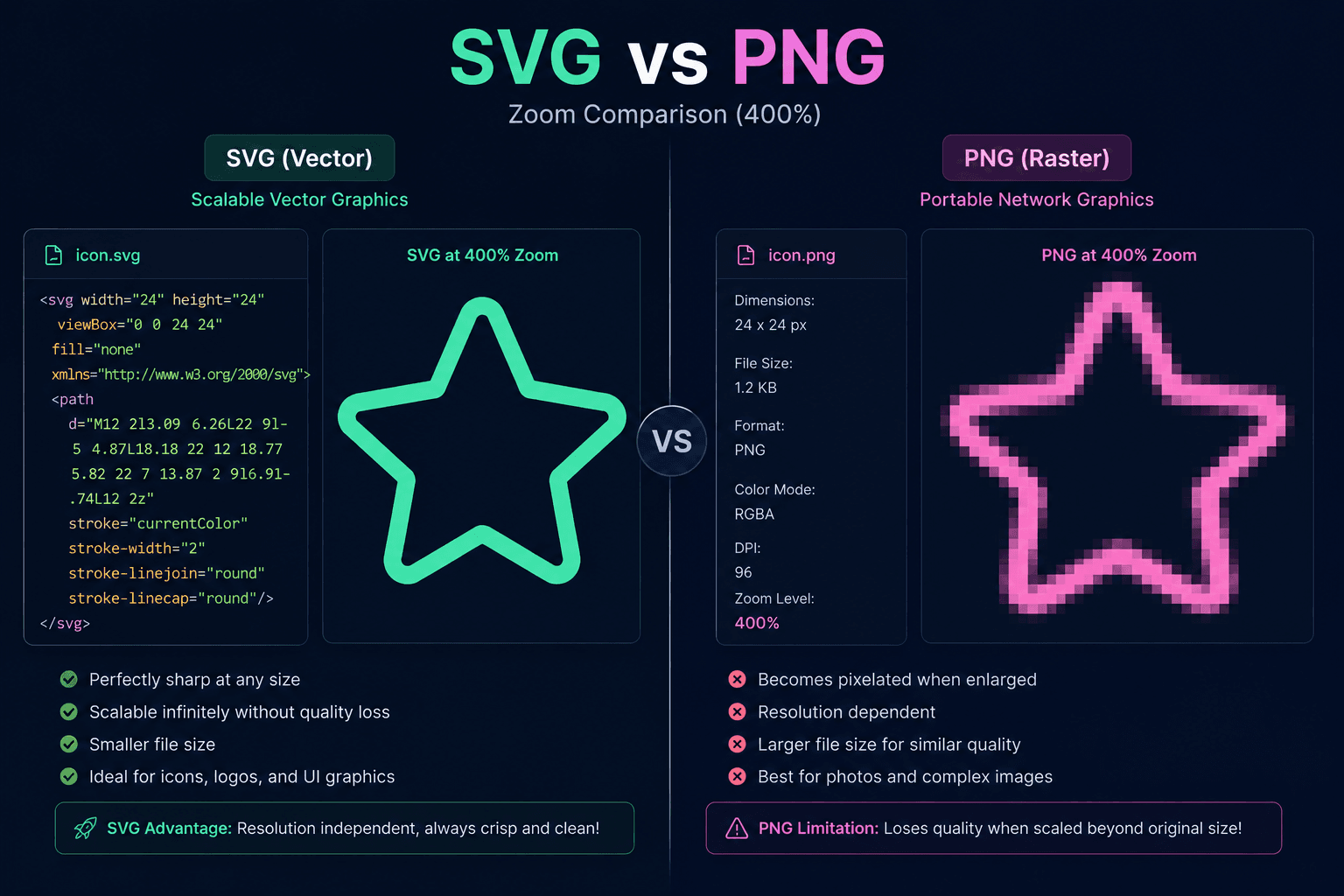
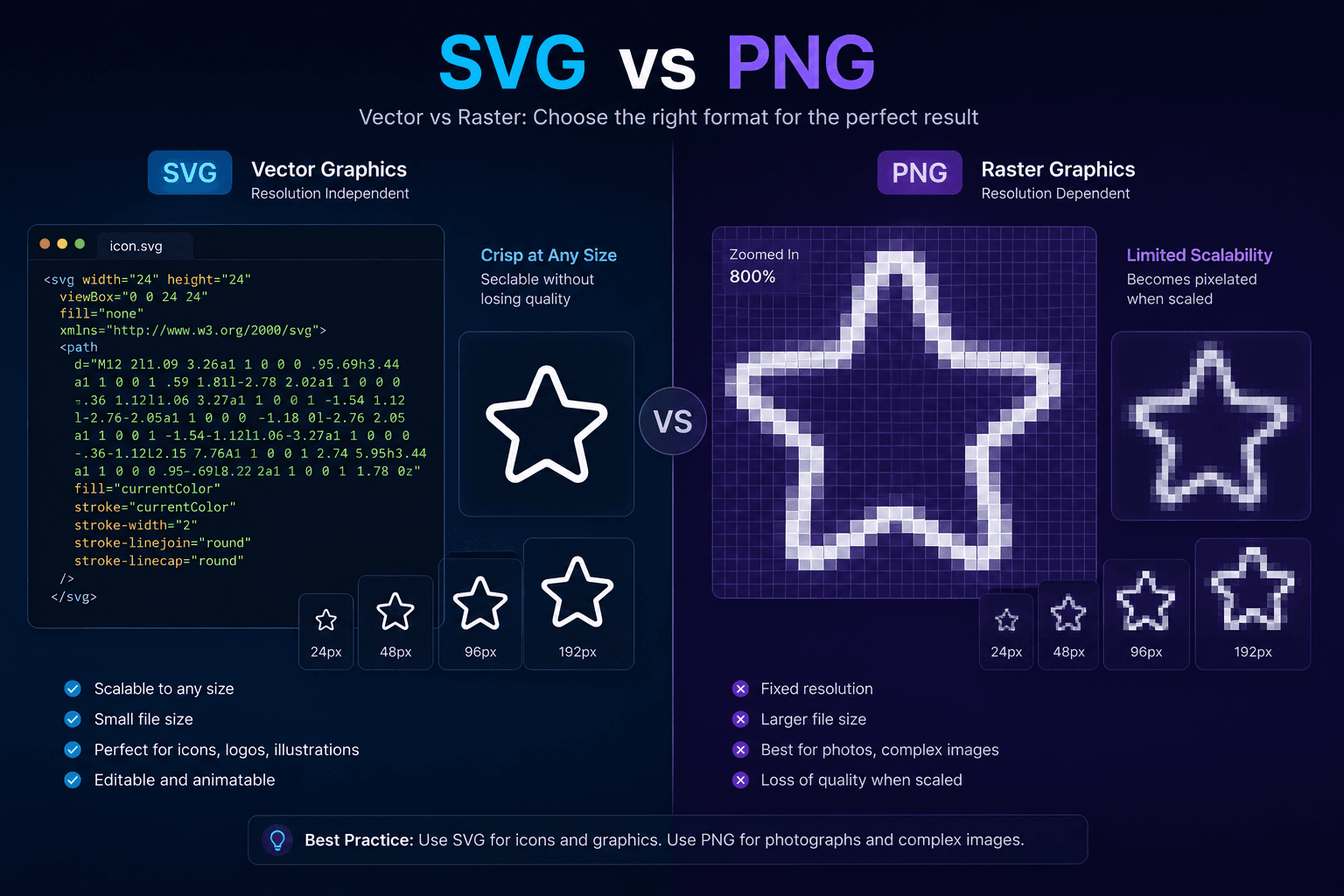
SVG (Scalable Vector Graphics) stores images as mathematical descriptions of shapes, lines, and curves. Instead of recording which color each pixel should be, SVG records 'draw a circle of radius 50px at position (100, 100) with fill color #4F46E5.'
This means an SVG can be rendered at any size - from 12px to 1200px - with perfect sharpness. The math doesn't change; only the scale does.
PNG: Raster Format
PNG (Portable Network Graphic) stores images as a grid of pixels, each with a specific color value. A 24px PNG icon contains exactly 24x24=576 pixels of data. Scale it to 48px and the browser must interpolate - guessing at new pixel values - which often produces visible blurring or aliasing.
SVG: When It's the Right Choice
Choose SVG in these scenarios:
- Website icons and UI elements - navigation, buttons, feature sections, anywhere the icon needs to look sharp at different screen sizes and resolutions.
- Responsive design - SVGs scale naturally with fluid layouts without ever looking blurry.
- Retina/HiDPI displays - one SVG looks perfect on all screens, eliminating the need for @2x and @3x PNG variants.
- Icons that need color changes - SVG colors can be changed with CSS variables, enabling dark mode and theming without new image files.
- Logos - your logo should always be SVG so it looks perfect at any size.
- Animations - SVG paths and shapes can be animated with CSS transitions or JavaScript.
- Accessibility - SVG elements can include title and desc tags for screen readers.
PNG: When It's the Right Choice
Choose PNG in these scenarios:
- Email templates - many email clients block or poorly render SVG. PNG is universally supported in email.
- Legacy browser/platform compatibility - though rare today, some older platforms have incomplete SVG support.
- Complex icons with photographic elements - if your 'icon' includes gradient photography or highly complex gradients that are difficult to render in SVG, PNG preserves the detail.
- Open Graph / social media images - most platforms require raster formats for thumbnail images.
- App store icons - iOS and Android app store icons require PNG.
- CMS platforms without SVG support - some content management systems don't handle SVG uploads correctly.
Quick Decision Framework
Is it a UI icon on a website or app? Use SVG.
Does it need to scale or adapt to different sizes? Use SVG.
Is it going in an email? Use PNG.
Is it for social media or app stores? Use PNG.
Does it need CSS-based color changes? Use SVG.
Is the platform unknown or unpredictable? Use PNG as the safe fallback.
File Size Comparison
For a typical simple icon:
- SVG: 1-5KB (scales to any size from this single file)
- PNG @1x: 2-8KB
- PNG @2x (Retina): 8-30KB
- PNG @3x: 18-70KB
Using SVG eliminates the need for multiple resolution variants, reducing your total icon payload significantly.
How IconVaultKit Makes This Easy
IconVaultKit lets you export any icon in both SVG and PNG with a single click - you don't have to choose upfront. Customize your icon once, then download in whichever format(s) your project needs. Need both? Export both. It takes five seconds.
You can also export as JSX (for React) or Base64 (for inline embedding) - giving you every format option you'll ever need for any project context.
Conclusion
SVG is the right choice for the vast majority of web icon use cases - it's smaller, sharper, more flexible, and more accessible. PNG is your reliable fallback for email, legacy contexts, and platform-specific requirements.
Now that you know the difference, you'll make the right call every time. And with IconVaultKit, whichever format you need is just one click away.